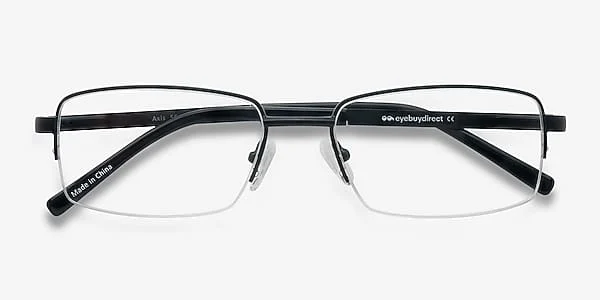
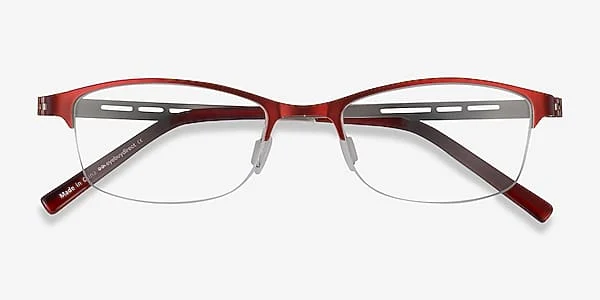
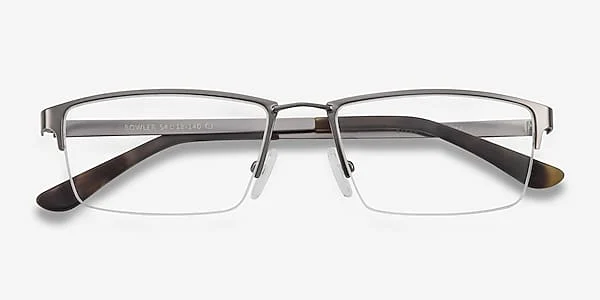
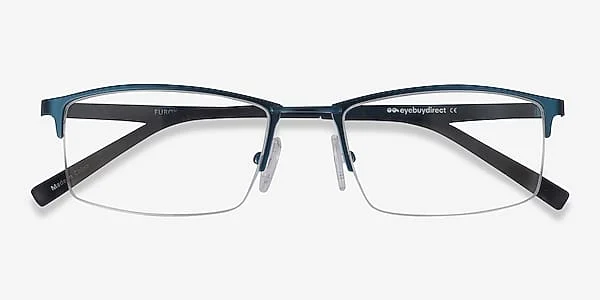
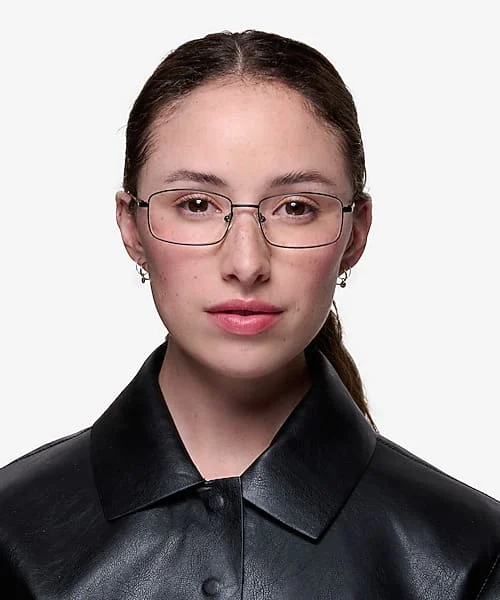
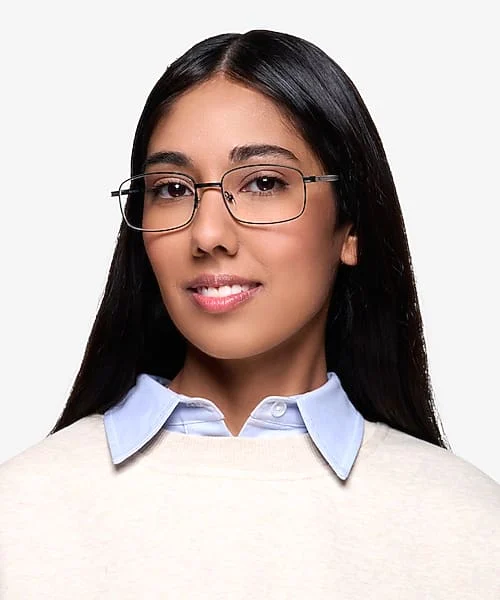
Virtual Try-On places a frame over a photo of your face so you can compare shapes and colours before you buy. It is a visual preview, not a fitting or a measurement.
How it works
-
1
Open a frame
Use the Try on button on any product card or product page, or start from the Virtual Try-On page.
-
2
Add a photo
Upload a front-facing photo or use your camera. The browser asks for camera permission first; you can say no and upload a photo instead.
-
3
Place the frame
Drag the frame onto your eyes, then resize and rotate it until the lenses sit over your pupils.
-
4
Compare
Switch colours, or open another frame and repeat. Save a snapshot only if you choose to.
Your privacy
- Your photo and camera feed stay in your browser. They are never uploaded to our servers or stored by us.
- Closing the page discards the photo. Snapshots are saved only to your own device, and only when you click to save one.
Tips for a better preview
- Face the camera straight on, in even light, with hair away from your eyes.
- Take off the glasses you are wearing so the frame lines up with your eyes.
- Size the frame so its width roughly matches the width of your face at the temples.
The preview is positioned by hand, so it cannot measure your pupillary distance (PD), confirm a frame size or check optical fit. Use the frame measurement guide and the PD guide for those.
Ready to try some frames?
Start Virtual Try-On